Tuesday, July 17, 2012

How to remove Windows virus hunter

Windows Virus Hunter is a rogue malicious antivirus program which displays fake security alerts, reporting that malware has been detected on your computer. The rogue program detects false infections and displays numerous fake security warnings, alerts using pop-ups. Windows Virus Hunter disables the Windows system utilities, including Task Manager and Windows Registry and prevents you from running certain programs like antivirus. The browser also redirects you to fake websites when you try to visit security websites and also slows down your computer(see:How to Remove the Google Redirect Virus). Follow the given steps to remove the Windows Virus Hunter.

Step1: Restart your computer and during the restart process, press F8 key on your keyboard repeatedly. Select Safe Mode with Networking, and then press ENTER.
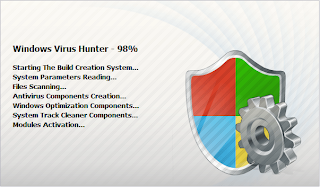
How to remove Windows virus hunter 
Step2:  Windows Virus Hunter adds a proxy to your Internet connection, so we need to its settings. It's because of this proxy, your system display various errors when you try to access the Internet. To do this, open Internet explorer>click Tools >select Internet Options. Then select the "Connections" tab.

Step3: In the "Connections" tab, click LAN settings. Uncheck if the "Use a proxy server for your LAN" box is checked. Click OK.

Step4: Download any latest legitimate anti-spyware software to fully remove Windows Virus Hunter from your computer(see:How to Download Free Virus Removal Software). This software scans your computer and removes the virus.

Step5: After removing Windows Virus Hunter, you will need to reset your Hosts file. It is because this virus modifies your Hosts files due to which you encounter browser redirect problems. To reset the Hosts file, rename the old one. Locate the Hosts file, right-click it and click Rename. Rename it to Hosts.old. Now create a new Hosts file in the same location by right-clicking anywhere on the blank space and selecting New> Text Document.

Step6: A new Notepad file will open up. Make sure that the extension of this file is not .txt. Now copy and paste the text data from Hosts.old to this file. Save the changes and close the file.


Thursday, July 5, 2012

How To Remove Win HDD virus

How To Remove Win HDD virus
Win HDD virus infects your computer by acting like a security application that scans your computer for virus, malware infections. Win HDD is a fraudulent system diagnostic and hard drive defragmenter software which displays fake alerts and system errors on computers affected by it. This virus comes when you download files or software from the Internet. Basically it is a part of a fake system utilities family which includes HDD Diagnostic, HDD Defragmenter and HDD Control. This virus prevents you from accessing the Internet. Follow the given steps to remove virus from your computer.

Step1: First, restart your computer in safe mode. To start your computer in safe mode: Start> click Restart > click OK. As your computer restarts but before Windows loads, press F8 repeatedly. Use the arrow keys to highlight the appropriate safe mode option, and then press ENTER.

Step2: Try to delete the temporary files and then empty the Recycle Bin folder also.

Step3: Clean your Windows registry because it store all of your computer's device and file associations information , as well as critical information about drivers, directories, Windows applications and more. If you are using windows XP, then follow the given points to remove virus from windows registry.
  • Click the Start menu button >Click “Run”.
  • Type "regedit" in the text field and press "Enter."

Step4: Scan your computer using good antivirus tools. To protect your computer from virus, you need a strong and reliable antivirus software.

Note: To get online virus removal support ,you can reach online technical support service desk of V tech-squad at their Toll Free No +1-877-452-9201.

Tuesday, June 26, 2012

How to Remove Achtung Virus

Achtung virus is malicious fake spyware application. If your computer is infected with this virus, you won’t be able to visit any websites but will see some alerts like-Visiting this web site may harm your computer. When your computer is infected with Achtung virus, you get the following symptoms.
  • Achtung virus can slow down your computer.
  • Achtung virus can redirect your default home page to unwanted web sites. Achtung may even add new shortcuts to your PC desktop.
  • Achtung virus shows the popup ads, even when you're not connected to the Internet, while secretly tracking your browsing habits and gathering your personal information.
  • E-mails that you didn't write are being sent from your mailbox
Follow the given steps to remove Achtung virus manually:

Step1: Restart your computer in Safe Mode with Command Prompt (to run Safe mode in your computer, press “F8 key” on your keyboard repeatedly).

Step2: When Windows boots, the Command Prompt will open up showing c:\WINDOWS\system32\cmd.exe. In Command Prompt, type “regedit” and press Enter. Then Registry Editor Window comes up.

Step3: In Registry Editor, find the below entry and select the registry key named Shell. Right click Shell and select Modify.

How to Remove Achtung Virus
HKEY_LOCAL_MACHINE\SOFTWARE\Microsoft\Windows NT\CurrentVersion\Winlogon\

Step4: The default value data is Explorer.exe. Change it to iexplore.exe. Click OK. Close Registry Editor also.

Step5: Now in the Command Prompt window, type “shutdown /r /t 0” and hit the Enter key. Your computer will restart in the normal mode.

Step6: When the computer restarts, you will not see any desktop icons. Now open Windows Task Manager using “Ctrl+Alt+Del” or “Ctrl+Shift+Esc” and run a new task from the File menu-> New Task (Run…).

Remove Achtung VirusStep7: In Create New Task window, type iexplore and click OK. It will open up Internet Explorer.

Step8: After completing the all above steps, scan your computer using a good antivirus. When virus scan completes, remove all the infected items.

Step9: Again open the Windows Task Manager and click File-> New Task (Run…) -> Type in regedit and click OK.

Step10: It will open up Registry Editor again. Find the same above entry (step3), right-click Shell and select Modify .Then Delete iexplore.exe and type Explorer.exe. Click OK.

Step11: Now you can restart your computer to complete the above task.

 If you have any difficulties with manual virus removal instructions, then you can get online virus removal support from online technical support service desk of V tech-squad at their Toll Free No +1-877-452-9201.


Thursday, June 21, 2012

How to Remove the Google Redirect Virus

How to Remove the Google Redirect Virus
Google redirect virus is usually a by-product of malicious software. Many people say that this problem remains after removing the rogue security software or Trojan. This virus redirects your Google search results to unwanted pages when you click the specific website. In some cases anti-virus and anti-spyware programs remove other Trojans or viruses, but unfortunately can’t detect changes made by the Google redirect virus. You should check in order to remove Google Redirect virus or fix Search Engine Redirect problem.

Check Local Area Network (LAN) settings:

•    Open Internet Explorer. In Internet Explorer go to: Tools->Internet Options and click on “Connections” tab, then click “LAN settings” button.
•    Uncheck the checkbox under “Proxy server” and click OK.

Make sure that DNS settings are not changed:

Step1: From “Start” menu, go to Control panel.

Step2: Double-click the “Network Connections” icon to open it. Right-click “Local Area Connection” icon and click “Properties”.

Step3: Select “Internet Protocol (TCP/IP)” and then click the “Properties” button. Choose “Obtain DNS server address automatically” and click OK.

Check Windows HOSTS file:

Step1: Go to: C:\WINDOWS\system32\drivers\etc.

Step2: Double-click the “hosts” file to open it. Choose to open with Notepad.

Step3: The “hosts” file should look the same as in the image below. There should be only one line: 127.0.0.1 localhost in Windows XP and 127.0.0.1 localhost ::1 in Windows Vista. If there are more, then remove them and save changes.

Manage Internet Explorer add-on. Remove unknown or suspicious add-on:

Step1: Open Internet Explorer. In Internet Explorer go to: Tools->Manage Add-ons.

Step2: Uninstall unknown or suspicious Toolbars or Search Engine tools.

Use TDSSKiller tool to remove malware belonging to the family Rootkit.Win32.TDSS

Download the file TDSSKiller.exe and execute the file TDSSKiller.exe.

Scan your computer with legitimate anti-malware software

You should install proper anti-malware software and regularly scan your computer.

Use CCleaner to remove unnecessary system/temp files and browser cache

CCleaner is a freeware system optimization. It’s not a malware removal tool. However, it’s always a good idea to get rid of the unnecessary internet/system files or corrupt Windows registry values that may cause various problems to your computer.

Note: To get online virus removal support ,you can reach online technical support service desk of V tech-squad at their Toll Free No +1-877-452-9201.
 

You can also see: How to Remove a Virus from System Restore
                             How to Run Virus Scan in Safe Mode


Thursday, June 7, 2012

How to Remove a Virus from System Restore

Windows System Restore is a feature that allows you to save a restore point of your computer's system files. This restore point is used to roll back your computer's files when your system file is corrupted or crashed. If a virus has infected your system files, your restore point may be infected with the virus, too. When your system restore is corrupted from virus that time System Restore virus will display many fake pop-ups and fake system scans in order to make people believe it is part of Windows. You can follow the manual process to remove virus by cleaning out your system restore points. Follow the given steps to remove virus from system restore in windows 7.

Step1: From Start button, right click on the "Computer" button and choose "Properties" from the drop-down menu. This will open the Systems Properties window.

Step2: Click the "System Protection" option in the top left hand corner of the window. This will open the System Protection options window.

Step3: Select your computer's hard drive and click the "Configure" button.

Step4: Click the option next to "Turn off system protection" under the Restore Settings .Then click the "OK" button. This will delete any infected system restore points and prevent Windows from making new infected restore points until you have cleaned the virus from your computer.

To turn on System Restore again after the restore point deletion has completed, repeat these steps, but click to clear the Turn off System Restore for all drives check box.

Note: To get online virus removal support ,you can reach online technical support service desk of V tech-squad at their Toll Free No +1-877-452-9201.

Thursday, May 31, 2012

How to Run Virus Scan in Safe Mode

Run Virus Scan in Safe Mode
Safe mode is a diagnostic mode used to trace and solve computer problems that cannot be fixed in the regular booting mode. Booting your computer in safe mode prevents many programs and malicious tools from automatically loading up during startup. Safe mode will allow you to delete a virus successfully because it stops it from running in the background. A powerful virus can easily dodge your antivirus and can prevent its detection when you run a virus scan. It is because the virus is running like any other normal application or process in the background when your computer is in the normal mode.

Suppose your system doesn’t boot up correctly, chances are that it may have a virus. It is recommended that you start your computer in safe mode and run a virus scan. When your computer is the safe mode, it will not load non-essential processes and non-core components. In other words, only the minimum necessary programs will load. Follow the given steps to run virus scan in Safe mode.

Step1: If your computer is on then shut it down and then power it on.

Step2: When power comes on your computer and then repeatedly start pressing the F8 key.

Step3: In the Windows Advanced Options Menu screen, use the Down arrow key to select Safe Mode and press Enter. Once you select Safe Mode, the computer will continue booting up.

Step4: Windows will boot to the logon screen. When logon screen comes up, click "Administrator" and enter your password to log on if you have one. Windows will boot up.

Step5: Click on your antivirus program and open it. Follow the onscreen steps to run a virus scan.

Step6: After the virus scan is completed, delete all detected viruses.

Step7: After completing all the steps, restart your computer in normal mode.


Note: To get online virus removal support ,you can reach online technical support service desk of V tech-squad at their Toll Free No +1-877-452-9201.


Thursday, May 24, 2012

How to Fix McAfee Security Center

fix McAfee Security Center
McAfee Security Center is a security package that includes antivirus and Internet protection suites to protect your computer from every day viruses, trojans, spyware, spam and malware. McAfee programs with time become corrupt from system changes, registry errors and begin to freeze, leaving your computer vulnerable to malicious attacks. Troubleshooting your McAfee Security Center helps fix common problems to ensure that your computer remains protected.

Step1: Any other antivirus programs besides McAfee security center causes conflicts. To uninstall these programs, from Windows "Start" button and click the "Control Panel." Double-click "Add or Remove Programs" to open the programs window. Select programs and click "Remove" to uninstall it from your computer.

Step2: Run a registry cleaner program to fix missing McAfee Security Center dll files and extensions. Mainly most of the errors with McAfee occur in the registry, and repairing the registry will solve a great deal of problems. If you do not have a registry cleaner, download free registry cleaner and install it.

Step3: After install registry cleaner, click the "Registry" button on the left panel. Click "Scan for issues." CCleaner will search the registry for corrupt McAfee files. Then click "Fix selected issues" when the scan is complete and click "Yes" to back up your registry.

Step4: Click on the "Fix all Selected Issues" option when the backup will complete and click "OK" to repair the corrupt McAfee registry entries.

Step5:  Download any available updates, patches and fixes if there are any from the McAfee website. To check for updates, navigate to the McAfee support page and click "Downloads" to see if there are any available security updates.

Step6:  Uninstall and reinstall your McAfee programs as a final resort if all other troubleshooting attempts fail. To uninstall your McAfee programs, click the Windows "Start" button and click the "Control Panel."

Step7: Double click on "Add or Remove Programs" to open the programs window. Scroll through and click the McAfee program you want to uninstall. Click “Remove." Option Perform the same procedure to uninstall other McAfee programs. After completing the all steps, restart your computer.

Step8: Insert your McAfee installation disk into the computer CD-ROM drive to re-install the McAfee programs. If you purchased a download, navigate to the McAfee website to download and install your McAfee programs.

Note: To get McAfee tech support ,you can reach online technical support service desk of V tech-squad at their Toll Free No +1-877-452-9201.